
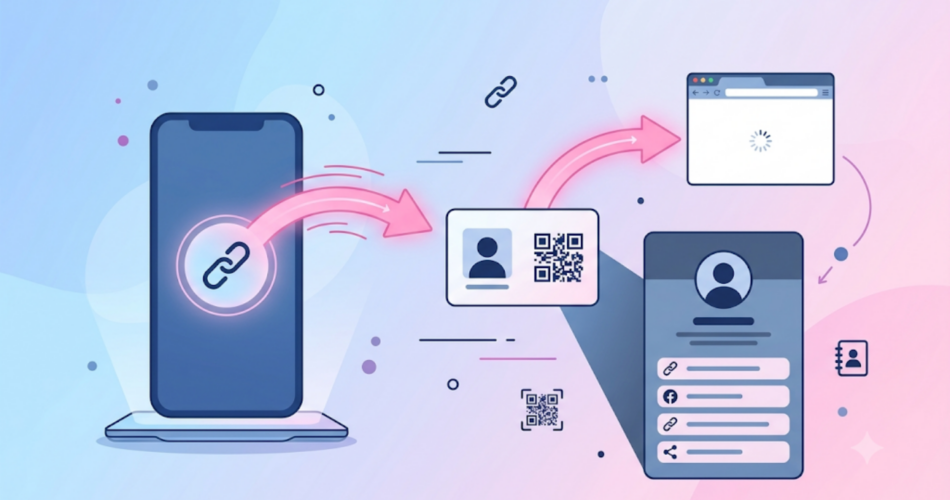
You hand someone a business card, they nod, they slide it into a pocket, and odds are it never comes back out.
A QR code changes that moment.
It gives the person something to do right there, while the conversation is still fresh.
But before you slap a QR code on your next print run, there is one decision that most guides skip entirely:
- A business card QR code can do two completely different jobs, and picking the wrong one wastes the whole idea.
This guide walks through that decision first, then covers exactly how to build, design, and print a QR code that people actually scan.
Key Takeaways
- A business card QR code either saves your contact directly (vCard) or opens a page that shows more than a card can (a link to a bio page).
- Always use a dynamic QR code, not a static one. Cards get used for years, and your details will change before the stack runs out.
- A logo, matching colors, and a short call to action make people far more likely to scan.
- Ordering cards for a team? Bulk generation with a shared template keeps every card on-brand.
- Only a dynamic QR code tells you whether the thing is actually being scanned.
Step One: Decide What Scanning Should Actually Do
Skip the generator for a second.
Answer this first: when someone scans your card, do you want their phone to save you as a contact, or do you want them to see a page?
Save my contact (vCard QR code)
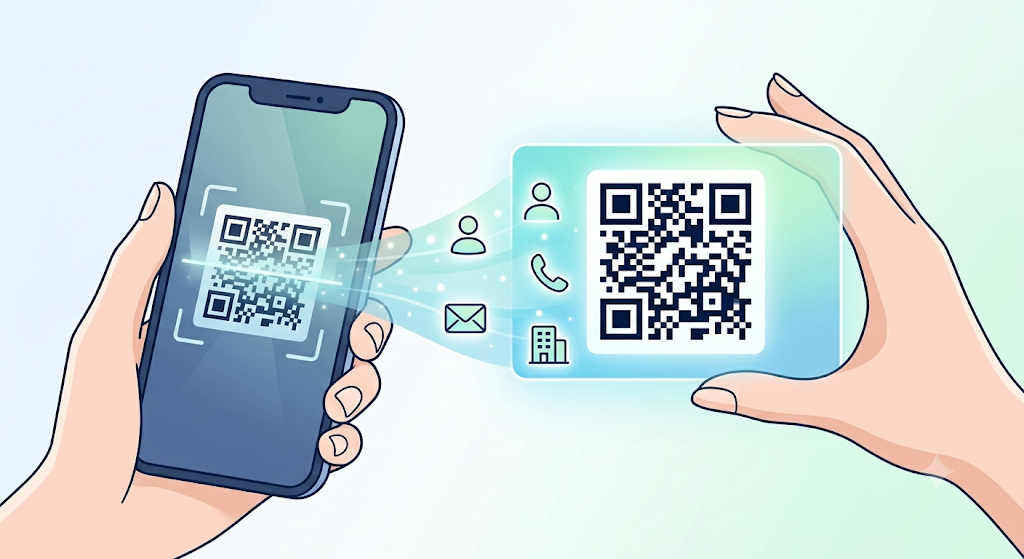
A vCard QR code drops your name, number, email, and company straight into the other person’s contacts with no typing on their end.
It is the digital version of the handshake, quick, simple, done.
Pick this if getting into someone’s phone is the whole goal.
We walk through the setup in our guide to generating a QR code for a vCard.
Show my page (URL QR code to a bio page)
This route opens a page instead of a contact prompt.
Your details can still be right there, next to your portfolio, a booking link, your social profiles, or recent work, everything a card has no room to hold.
Pick this if you want the scan to leave an impression, not just add an entry to a contacts list.
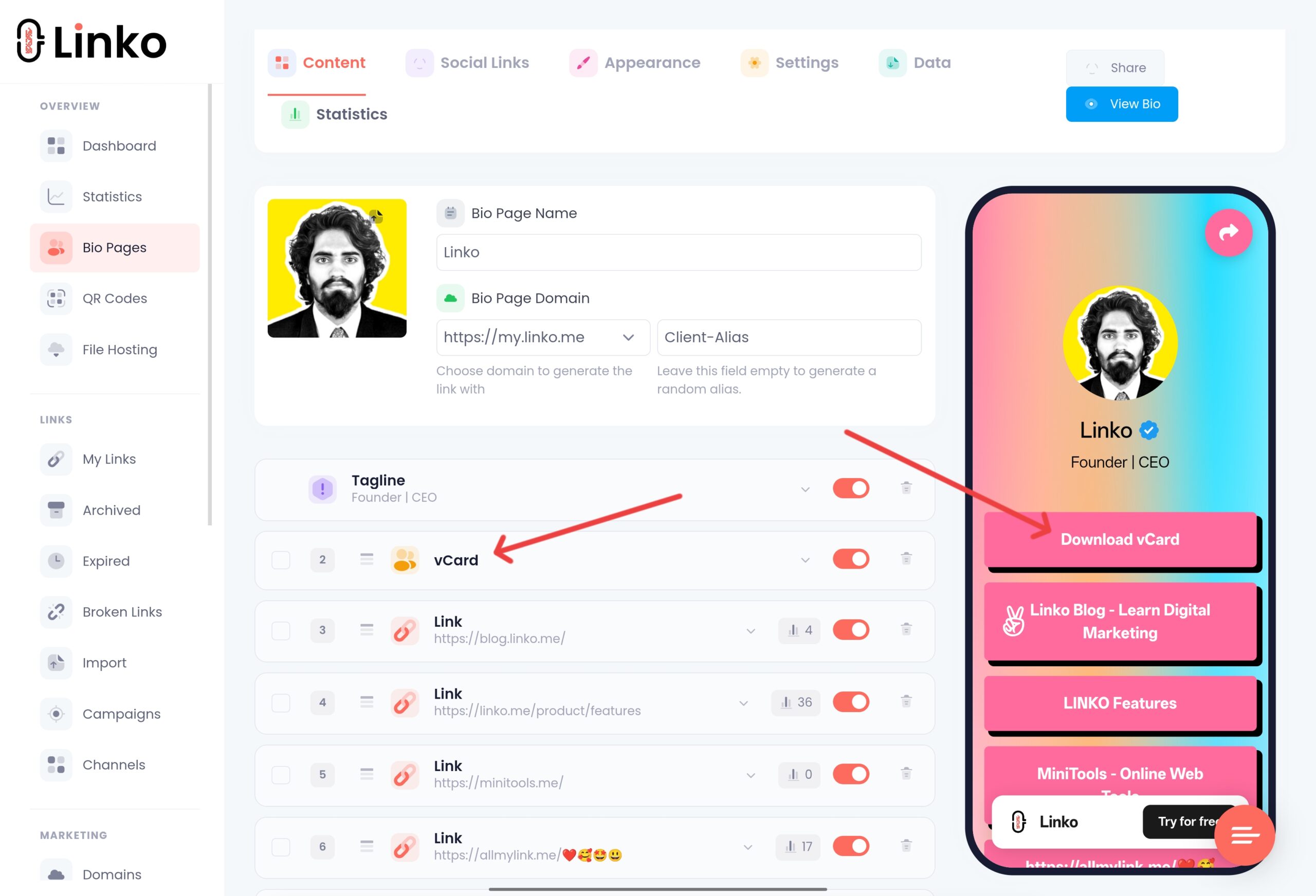
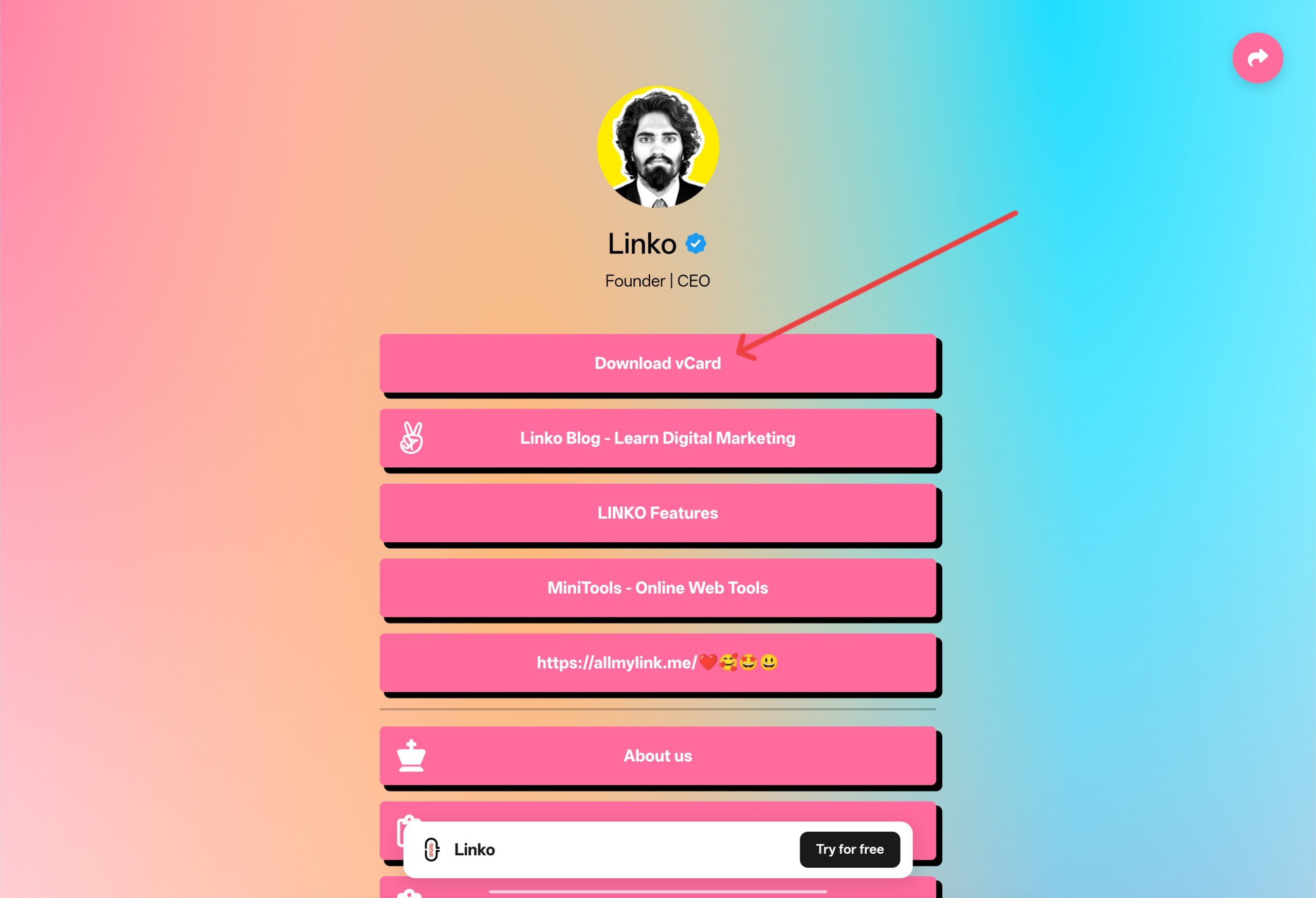
This is where a Linko bio page comes in: build the page once, and every card you hand out from now on points to it.
| What you want | QR type to use |
|---|---|
| Just get saved as a contact | vCard QR code |
| Show a portfolio, socials, or booking link | URL QR code pointing to a bio page |
| Both, without picking one | Bio page with a built-in “Add to Contacts” button, linked via URL QR |
That last row is worth pausing on.
A Linko bio page can include a save-contact widget right alongside everything else, so choosing a URL QR code does not mean giving up the one-tap save.
One code, both outcomes.
Never Print a Static QR Code on a Card
Here is the part most business card advice leaves out entirely.
A static QR code bakes your information directly into the pattern itself.
Once it is printed, it cannot change.
A dynamic QR code instead points to a short link you control, so you can redirect it anytime, and the printed code on the card never has to change.
Business cards do not get used once.
They sit in wallets, drawers, and rolodexes for years.
In that time your phone number changes, your title changes, maybe your company changes.
A static code means every card already handed out is now wrong, permanently, with the only fix being a reprint.
A dynamic code means you update the destination once, and every card, the ones you gave out last year and the ones you hand out tomorrow, points to the right place.
For the full breakdown, see Dynamic QR Code vs Static QR Code.
Dynamic is also the only version that tells you anything about who is scanning, which matters more for a card than people usually assume.
Building the QR Code with Linko
- Decide the destination first: vCard, or your Linko bio page link.
- Open Linko’s QR code generator and pick the matching type.
- If you are using a bio page, build it first with your contact info and any widgets you want, then copy the link.
- Paste your vCard fields or your bio page link into the generator.
- Add your logo, choose colors that fit your card, and pick a frame with a short call to action, something like “Scan to connect.”
- Bump up the error correction level if the code will print small, so a scuff or smudge does not break it.
- Download it, drop it into your card design, and check a print proof at real size before you order the full run.
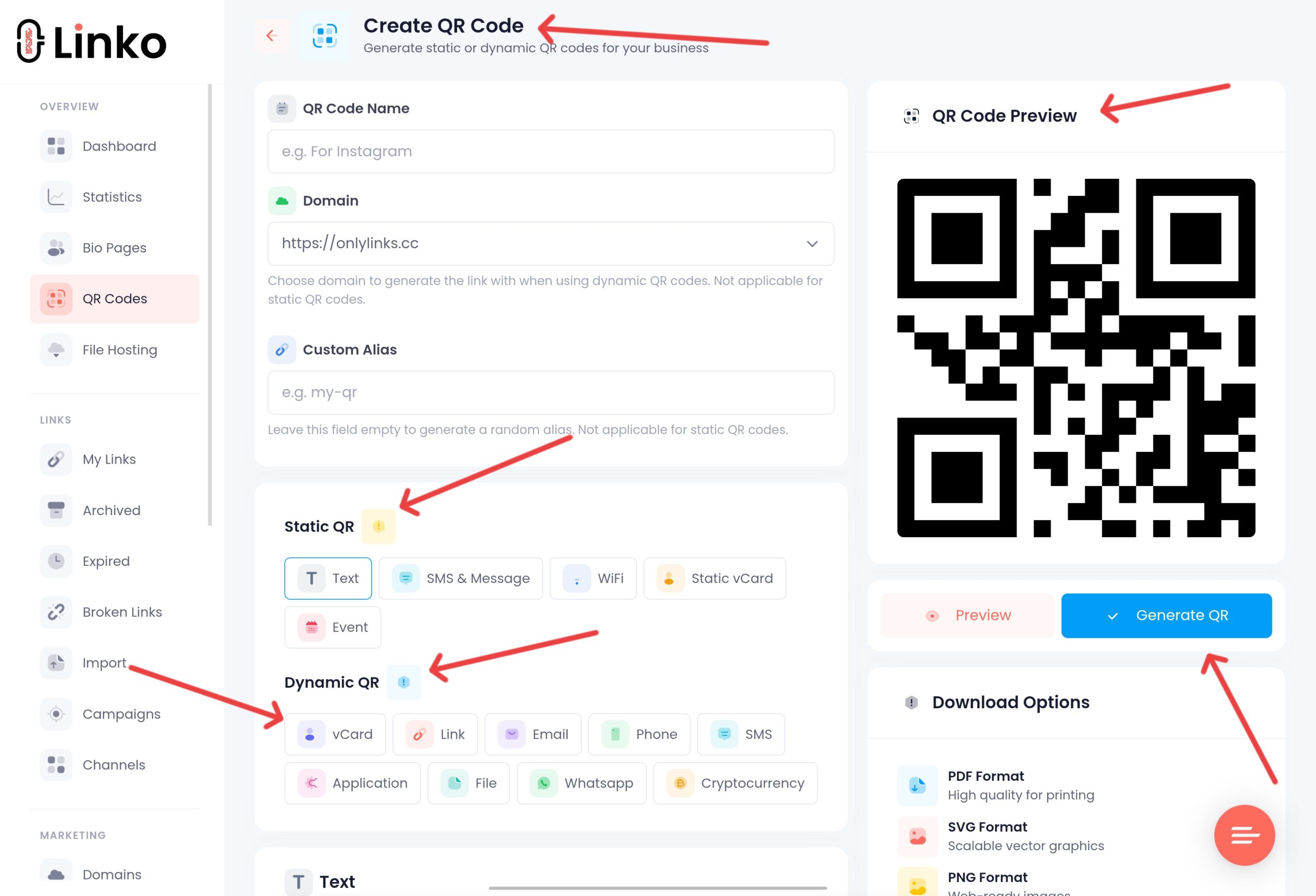
Because it is dynamic, you are never locked into that first destination.
Change your title, rebuild your bio page, point it somewhere new entirely, and every card already in circulation follows along.
Small Design Choices That Get More Scans
A plain black square works, technically. A few small tweaks make people actually bother.
- Put your logo in the center. It signals the code is intentional and safe to scan, not an afterthought.
- Match your card’s color palette. Just keep enough contrast between the code and its background so it still reads correctly.
- Add a frame with a reason to scan. A bare code gets ignored. “Scan to save my contact” or “Scan for my portfolio” tells people exactly what they get.
- Do not shrink it too far. Keep it at least 0.8 inches (about 2 cm) per side with some clear space around it, so a normal phone can pick it up without a struggle.
Printing Cards for a Whole Team?
Generating one QR code by hand is easy.
Generating fifty of them for a sales team, each with a consistent look but different contact details, is not, at least not without the right tool.
Linko’s bulk QR code generator creates many codes in one pass, and Custom QR Templates lock in your brand’s colors, logo, and frame so every employee’s card matches, even while each code points to that person’s own details or bio page.
Does Anyone Actually Scan Your Card?
A printed card has no way to answer that on its own.
A dynamic QR code does.
Linko logs every scan, roughly when it happened, and general location and device details.
That turns a stack of cards from a guess into something you can actually check, whether it is your own card or a whole team’s worth.
Which Linko Plan Fits This?
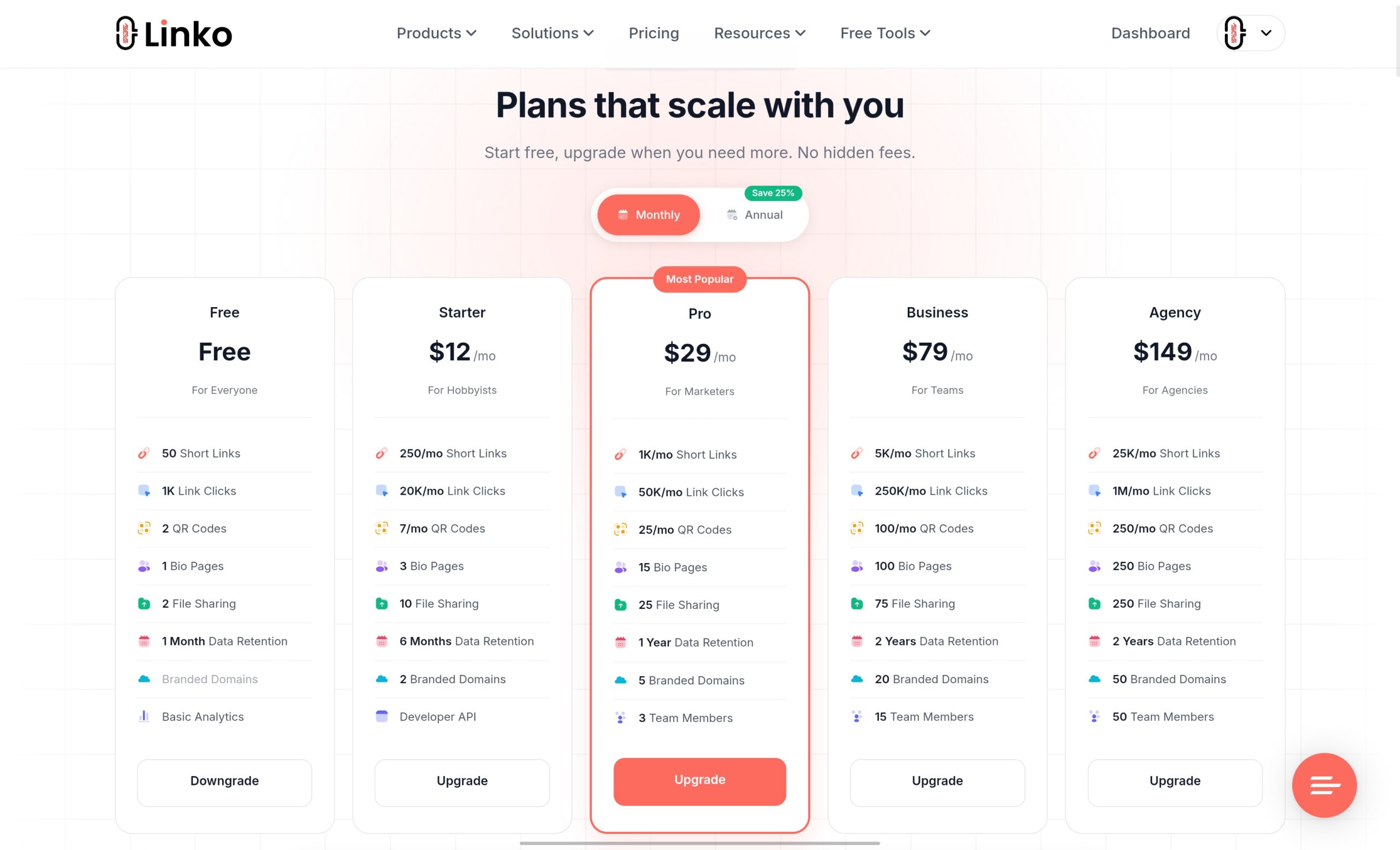
The Free plan gives you 2 QR codes, enough to try both the vCard route and the bio page route on a single card design.
If you are printing for a team, or you want Custom QR Templates and bulk generation, Starter at $12/month includes 7 QR codes per month and 10 Custom QR Templates, and Pro at $29/month steps that up to 25 QR codes per month and 20 templates.
Full details are on the Linko pricing page.
Frequently Asked Questions
Should my business card QR code save my contact or open a link?
It depends on what you want the scan to do. A vCard QR code saves your contact directly, which is enough if that is the only goal. A URL QR code to a bio page shows more, portfolio, socials, booking links, and can still include a save-contact button, so it covers both at once.
Do I really need a dynamic QR code for a business card?
For anything other than a card you will only ever print once and never touch again, yes. A static code cannot be updated after printing, so any change to your number, title, or company breaks every card already handed out. A dynamic code lets you redirect it without reprinting a thing.
How big should the QR code be on a business card?
At least 0.8 inches (roughly 2 cm) per side, with some breathing room around it, so it scans reliably at a normal distance. Always check an actual-size print proof before ordering a full batch.
Can I put my logo on a business card QR code?
Yes. A centered logo makes the code look deliberate and trustworthy. Just keep enough contrast between the code and its background so scanning still works.
Can I see who scanned my business card QR code?
Only with a dynamic QR code. Linko records each scan along with roughly when it happened and general location and device data, so you can tell whether the code is actually getting used.
Put a QR Code on Your Next Print Run
Decide first whether you want a save or a page, then build it as a dynamic code so it can keep up with you as things change.
Linko generates both vCard and URL QR codes with your logo, colors, and a frame, tracks every scan, and lets you redirect the destination without reprinting a single card.
Create your free Linko account and build your first business card QR code today.
Or try the free QR code generator first, then pick a plan once you know what you need.
Comments