
A QR code for Google reviews is the fastest way to turn a happy customer into a five-star ⭐ review.
Instead of asking someone to search for your business, scroll to the reviews, and find the right button, you hand them a code.
They scan it, the review screen opens, and they type. That’s it.
This guide shows you the whole process with real steps:
- How to get your exact Google review link,
- Which QR type to use in Linko,
- How many QR codes you get free, and
- How to add a Google Maps deep link so the code opens the Maps app directly.
No fluff, just the steps that work.
Key Takeaways
- Get your Google review link two ways: the “Get more reviews” link inside your Google Business Profile, or a Place ID link that opens the review box directly.
- In Linko, use a dynamic URL QR code so you can edit the destination and track scans later.
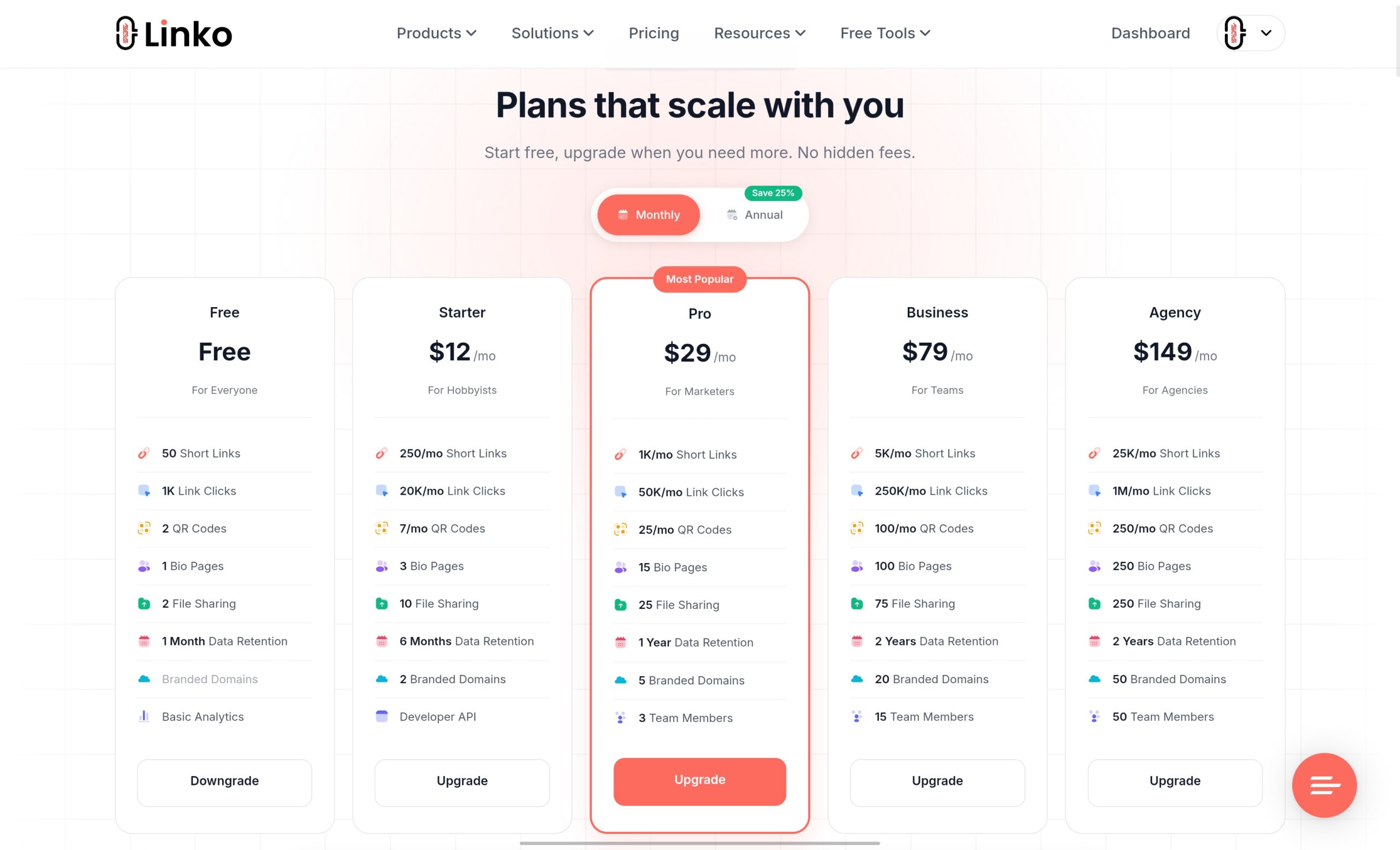
- Linko’s free plan includes 2 dynamic QR codes, enough to launch a review campaign at no cost.
- Dynamic QR codes let you change the link without reprinting the code.
- The Business plan at $79/month unlocks deep linking, so your code can open the Google Maps app straight to your listing.
Why Use a QR Code for Google Reviews?
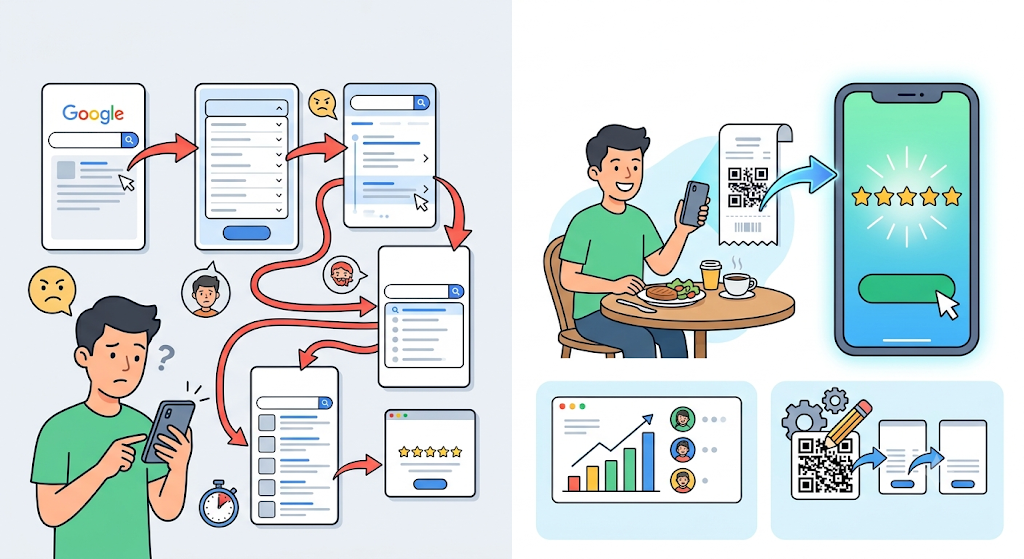
Every extra step between a customer and the review box costs you reviews.
Most people give up before they start.
A review QR code removes that friction.
You print it on a receipt, table tent, or packaging insert, and the customer scans it at the moment they are happiest.
The review screen opens on their phone in one tap.
A dynamic QR code adds two things that matter for a review campaign:
- You can edit the destination later without reprinting the code
- You can track how many people scan it, and where
If you are new to the difference, our guide on dynamic QR codes vs static QR codes explains why dynamic wins for anything you print.
Step 1: How Do You Get Your Google Review Link?
Before you make a QR code, you need the exact link that opens your review box.
There are two reliable ways.
Method 1: From your Google Business Profile (easiest)
This is Google’s own method and takes under a minute.
- Sign in to the Google account that manages your business.
- Search your business name on Google, or open your Business Profile.
- Select “Ask for reviews” or open “Get more reviews”.
- Google generates your unique review link, often a short g.page link. Copy it.
Google documents this in its own help article on how to create a Google link or QR code to request reviews.
Google can even generate a basic QR code here, but it offers no branding, no analytics, and no way to edit it later, which is why most businesses build the QR code in a dedicated tool instead.
Method 2: Build a direct link with your Place ID
This method creates a permanent link that opens the “write a review” box directly.
It does not change, which makes it ideal for printed materials.
- Open the Google Place ID Finder.
- Search for your business and copy its Place ID. It looks like
ChIJN1t_tDeuEmsRUsoyG83frY4. - Drop your Place ID into this format:
https://search.google.com/local/writereview?placeid=YOUR_PLACE_ID
That final URL is your direct review link.
Test it on your phone to confirm it opens the star rating screen for your business.
Step 2: Which QR Code Type Should You Use in Linko?
Your Google review link is a web URL, so you use a URL QR code.
Make it dynamic so you can edit and track it.
Here is how to create it:
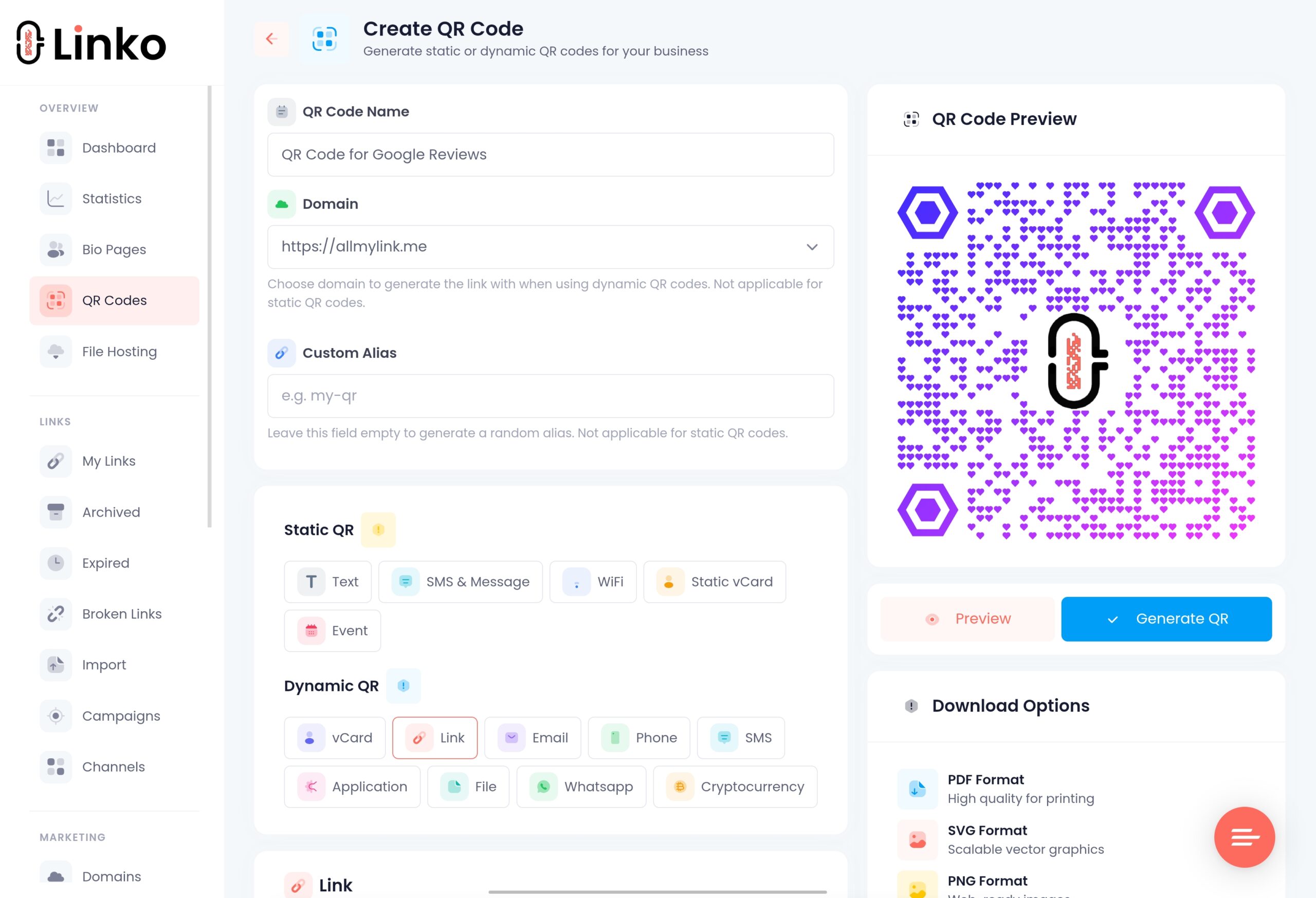
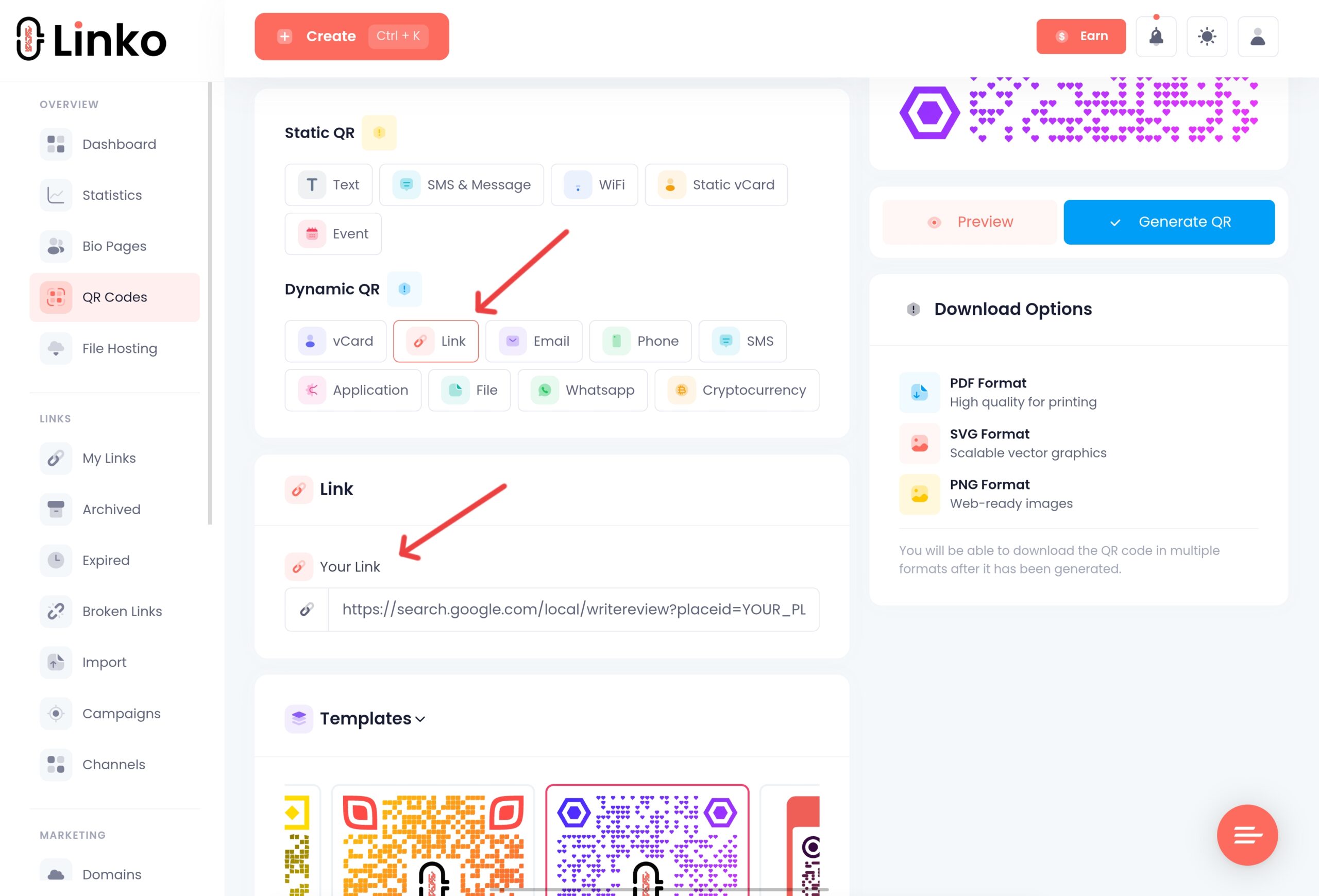
- Open Linko’s QR code generator.
- Choose the URL QR code type.
- Paste your Google review link from Step 1.
- Set the code to dynamic so you can edit the destination and see scan analytics.
- Generate the code.
Because the code is dynamic, the printed QR never has to change.
If your review link ever updates, you edit the destination in Linko and every printed code keeps working.
How Many QR Codes Do You Get Free?
Linko’s free plan includes 2 dynamic QR codes, with scan analytics included.
For most small businesses launching a review campaign, that is enough to start: one code for the counter and one for receipts or packaging.
The free plan also gives you the full generator, so you can add colors and a logo to match your brand.
You do not need to pay to create your first review QR code.
When you need more codes, higher plans raise the monthly limit, from 7 per month on Starter up to 100 per month on Business.
See the full Linko pricing breakdown.
Step 3: Customize and Download Your Review QR Code
A branded code looks more trustworthy, which matters when you are asking for a scan.
In Linko you can:
- Add your brand colors and a center logo
- Pick a frame with a short prompt like “Rate us on Google”
- Download in PNG, SVG, PDF, or WEBP for print or screen
Use SVG or PDF for anything printed large, like posters or window decals, so the code stays sharp.
For a deeper walkthrough of building codes, see our free QR code generator guide.
Advanced: Add a Google Maps Deep Link on the Business Plan
A standard review link opens in the browser.
You can go one step further and have your code open the Google Maps app directly on your business listing, which feels more native and keeps users inside the app they trust.
This uses deep linking, which is available on Linko’s Business plan at $79 per month and on the Agency plan.
Here is the flow:
- Upgrade to the Business plan from your Linko dashboard.
- Create a deep link to your Google Maps business listing.
- Turn that deep link into a dynamic QR code, the same way as Step 2.
Our step-by-step guide on how to create a Google Map deep link covers the exact setup.
When someone scans the code, Google Maps opens on your listing, where the “write a review” button is one tap away.
The Business plan also raises you to 100 QR codes per month, which suits multi-location businesses running review campaigns across several storefronts.
Where Should You Place Your Review QR Code?
The best spot is wherever a customer is happy and holding their phone.
- On the receipt or the bottom of an invoice
- On a table tent, counter card, or window decal
- Inside product packaging or on a thank-you card
- On the confirmation page after a purchase or booking
- In your email signature and post-service text messages
Pair the code with a short, direct prompt such as “Scan to leave us a Google review.”
Because your code is dynamic, you can track which placement drives the most scans and double down on what works.
Frequently Asked Questions
How do I get a QR code for Google reviews?
Get your Google review link from your Business Profile or with your Place ID, then paste it into Linko’s QR code generator as a dynamic URL QR code. Customize it, download it, and print it where customers can scan.
Is a Google review QR code free?
Yes. Linko’s free plan includes 2 dynamic QR codes with scan analytics, which is enough to launch a review campaign. You only need a paid plan for more codes or advanced features like deep linking.
What is my Google review link?
It is the URL that opens your review box. You can copy it from the “Get more reviews” option in your Google Business Profile, or build a direct one using the format https://search.google.com/local/writereview?placeid=YOUR_PLACE_ID.
Should my review QR code be static or dynamic?
Dynamic. A dynamic QR code lets you edit the destination without reprinting the code and shows you scan analytics, both of which matter for a printed review campaign.
Can the QR code open the Google Maps app instead of a browser?
Yes, with a deep link. Deep linking is available on Linko’s Business plan at $79 per month, and it lets your code open the Google Maps app directly on your business listing.
Can I track how many people scan my review code?
Yes. A dynamic Linko QR code records scans, so you can see how many people scanned, when, and from where, and compare different placements.
Start Collecting More Google Reviews
A review QR code is one of the cheapest, highest-impact tools a local business has.
Get your review link, turn it into a dynamic QR code, and put it in front of happy customers.
You can create your first review QR code free, with scan analytics included, and upgrade only when you need deep linking or more codes.
Create your free Linko account and make your Google review QR code in minutes.
No credit card required to start.
Comments