
OnlyFans link automation is how serious agencies scale past 50 creators without hiring an army of operations staff.
One agency managing 50+ OnlyFans creators was generating 10,000+ short links every month.
Each creator needed roughly 100 unique tracked links for their funnels. With 500+ links being created daily, manual link generation became impossible.
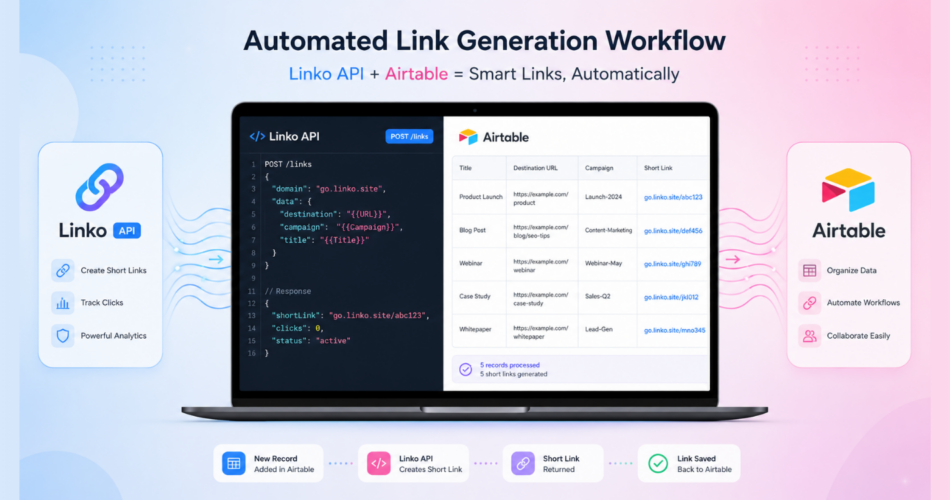
The solution: a custom Airtable script that calls the Linko API and creates hundreds of campaign-tracked links automatically.
This tutorial walks through the exact setup.
You’ll learn how to build a working automation that generates short links, organizes them by creator, and stores them in Airtable for your team to use.
By the end of this guide, you’ll have a system that can create 100+ links per creator with a single click.
Key Takeaways
- Linko’s REST API lets you create unlimited tracked short links programmatically.
- Airtable scripts can call the Linko API directly and store results in linked tables.
- Each creator gets their own campaign for clean per-creator analytics.
- Rate limits depend on your plan: Business gets 60 req/min, Agency gets 500 req/min.
- This setup scales from 10 creators to 500+ without changing the code.
Why Automate OnlyFans Link Management?
Managing OnlyFans creators at scale creates a link generation bottleneck.
Each creator needs:
- Unique trackable links for every Reddit post
- Separate links for each social platform (Instagram, X, TikTok)
- Telegram funnel links to bypass platform bans
- Rotating links to avoid detection and shadowbans
- Campaign-tagged links for performance analytics
Doing this manually for one creator takes hours. Multiplying that across 50+ creators is impossible without automation.
The Telegram funnel pattern
Most successful OnlyFans agencies use a Telegram bridge strategy.
Instead of posting OnlyFans links directly on Reddit or social media (which get banned), they post Telegram channel links.
The Telegram channel then redirects fans to the actual OnlyFans profile. This sidesteps platform bans entirely.
For more on this strategy, see our guide on how to bypass OnlyFans link bans.
If you prefer to shorten OnlyFans links directly instead of using a Telegram bridge, deep linking is the alternative approach.
Learn more in our guide on how to create an OnlyFans deep link.
The catch: each Telegram link needs to be shortened with a unique tracker. Posting the same link 100 times triggers spam filters.
Why Linko for this workflow
Three Linko features make this automation possible:
- REST API for programmatic link creation
- Campaigns for organizing links per creator
- Custom domains like
allmylink.meoronlylinks.ccfor branded links
For a broader overview of agency tooling, see our guide to the best OnlyFans marketing tools for agencies.
What Do You Need Before Starting?
Before building the automation, you need three things in place.
1. Linko Business or Agency plan
API access requires a paid plan with sufficient rate limits.
Recommended plans for this workflow:
| Plan | Price | API Rate Limit | Branded Domains | Best For |
|---|---|---|---|---|
| Free / Starter | $0 / $12 | 5 req/min | 0-2 | Not suitable |
| Pro | $29/month | 15 req/min | 5 | Single creators |
| Business | $79/month | 60 req/min | 20 | Small agencies (5-20 creators) |
| Agency | $149/month | 500 req/min | 50 | Large agencies (50+ creators) |
For high-volume automation, the Agency plan is the only realistic choice. Pro Plan’s 15 requests per minute caps you at roughly 900 links per hour.
2. Airtable account
Airtable’s free plan supports basic scripting through the Scripting extension.
For automation triggers (running scripts on record creation), you’ll need the Team plan or higher.
3. Basic familiarity with Airtable
You should know how to:
- Create tables and fields
- Link records between tables
- Add the Scripting extension
You don’t need JavaScript expertise. The complete code is provided below.
If you’re new to Airtable scripts, review the official Airtable Scripting extension overview before starting.
How Do You Set Up Linko for the Automation?
Linko setup involves three steps:
- Getting your API key,
- Creating campaigns for each creator, and
- Choosing your domain.
Step 1: Get your Linko API key
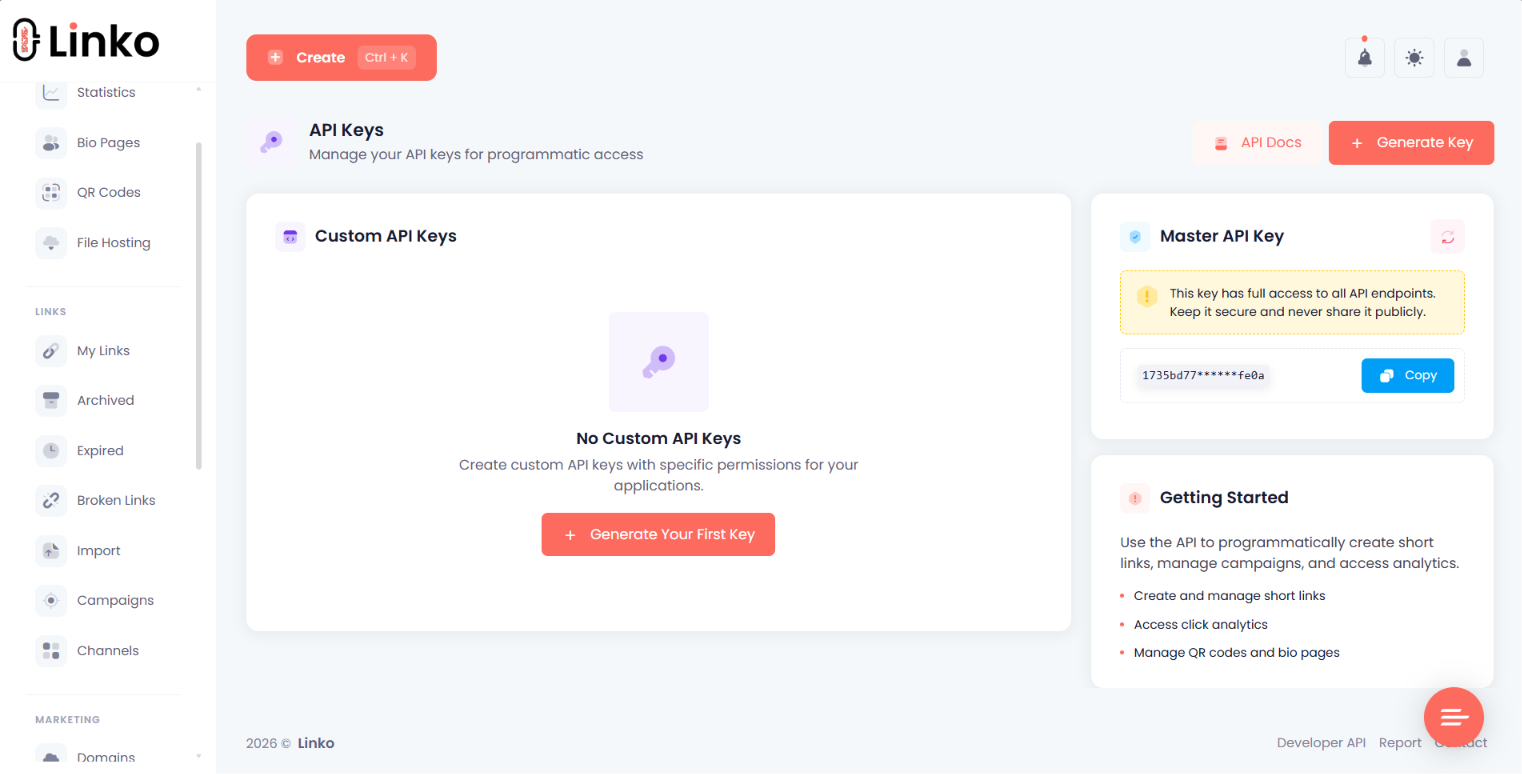
Log into your Linko account and navigate to linko.me/user/developers/apikeys.
Your API key is displayed on this page once you’re signed in.
Copy the master key or create a specific key for link shortening. Never commit it to public repositories or share it in plain text.
Step 2: Create a campaign for each creator
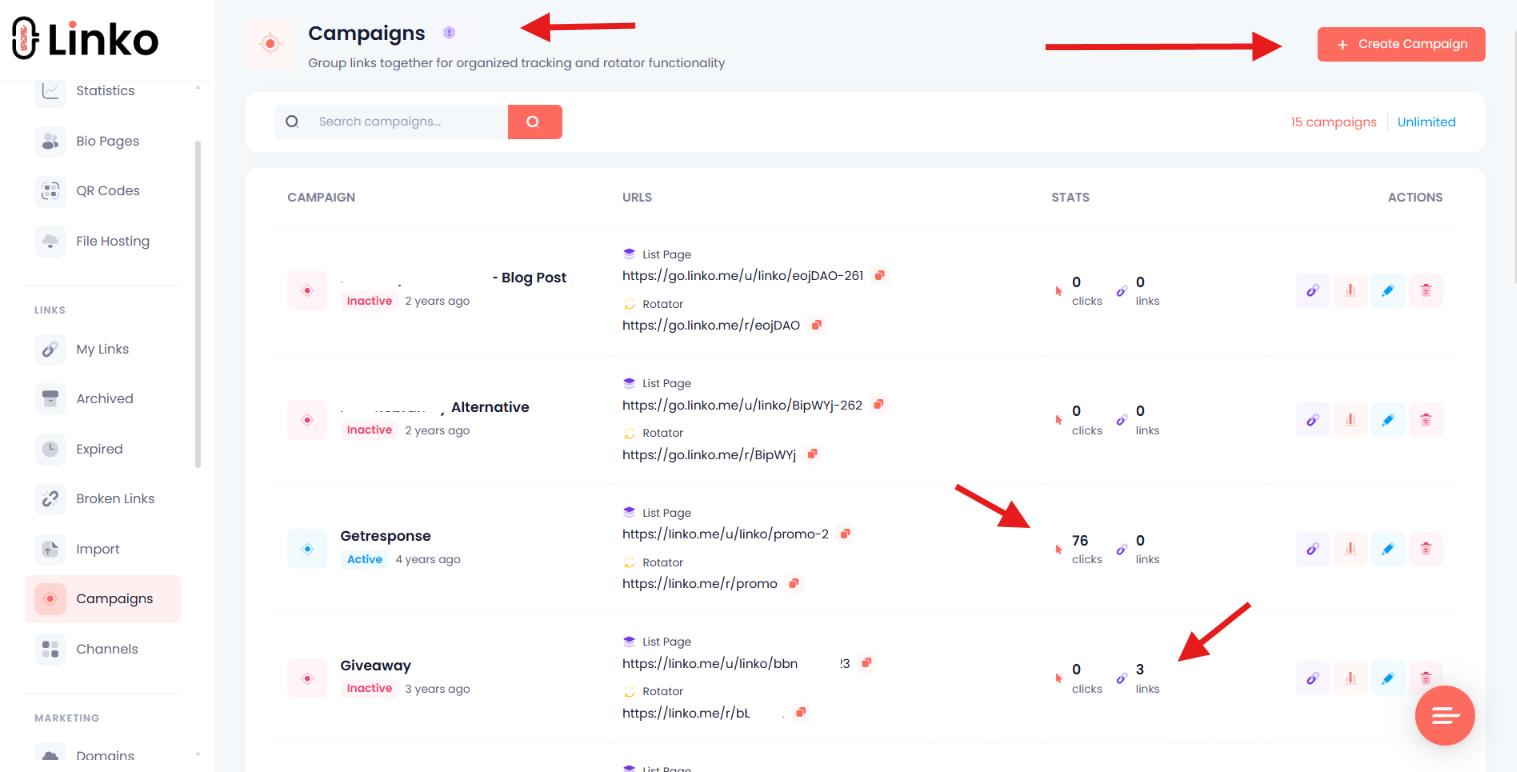
Campaigns organize links by creator, making analytics dramatically cleaner.
You can create campaigns through the Linko dashboard or via the API.
To create a campaign manually:
- Go to your Linko dashboard
- Click Campaigns in the sidebar
- Click Create Campaign
- Name it after the creator (e.g., “creator_username”)
- Save and note the campaign ID
For 50+ creators, creating campaigns programmatically is faster. The API endpoint is:
POST https://linko.me/api/campaign/addFor details, see Linko’s campaign creation guide.
Step 3: Choose your branded domain
Branded domains improve trust and bypass shared domain blacklists.
Common adult creator domains include:
allmylink.meonlylinks.cc- Your own purchased domain
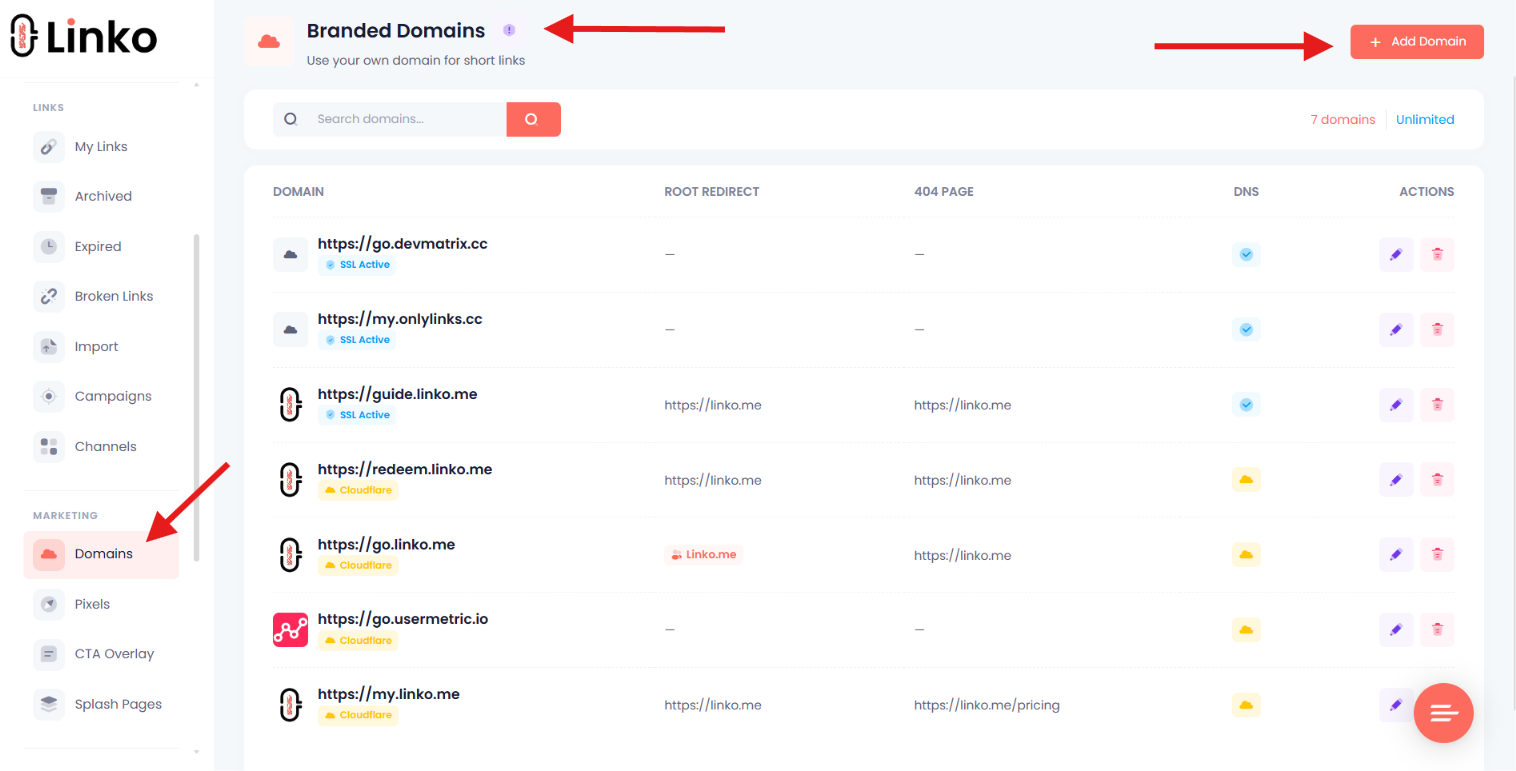
To set up a custom domain in Linko, follow the branded domain setup guide.
The domain URL (e.g., https://allmylink.me) is what you’ll use as the domain parameter in API calls.
How Do You Set Up the Airtable Database?
The automation uses two linked Airtable tables.
Table 1: Funnels
This table holds one record per creator.
Required fields:
| Field Name | Type | Purpose |
|---|---|---|
| Username | Single-line text | Creator’s username, used as campaign reference |
| Telegram Link | URL | The destination URL to shorten (a Telegram or OnlyFans) |
| Campaign ID | Number | The Linko campaign ID for this creator |
| Link Count | Count | Counts records in the linked Funnel Links table |
| Status | Single select | Options like “Active”, “Paused”, “Generate Links” |
Table 2: Funnel Links
This table holds one record per generated short link.
Required fields:
| Field Name | Type | Purpose |
|---|---|---|
| Status | Single select | Options like “Ready to Use”, “Used”, “Burned” |
| Short Link | URL | The Linko-generated short URL |
| Funnel | Link to Funnels table | Links back to the creator |
| Created Date | Created time | Auto-tracks when the link was generated |
Linking the tables
The Funnel field in the Funnel Links table is a Linked Record field pointing to the Funnels table.
This creates a one-to-many relationship: one creator has many short links.
The Link Count field in the Funnels table uses a Count formula to display how many links exist for each creator.
What Is the Complete Airtable Script?
The script reads each funnel record, calls the Linko API to generate the configured number of links, and writes results back to the Funnel Links table.
Below is the full working code.
Where to paste this script in Airtable
Before copying the code, set up the Scripting extension in your Airtable base.
- Open your Airtable base in a browser.
- Click Tools in the upper-right corner.
- Click “Extensions” from the menu.
- Click Add an extension.
- Search for and locate the scripting extension.
- Click “Add,” then “Add extension“.
- Click Get started, then Start from Scratch.
- The scripting editor opens with a code editor on the left and a results pane on the right.
- Delete any sample code in the editor.
- Paste the complete script below.
- Update the configuration variables at the top (API key, domain, etc.).
- Click Run in the right-hand results pane to execute.
The Scripting extension uses standard JavaScript with Airtable’s built-in API. The script uses the Fetch API for HTTP requests, which Airtable supports natively.
The complete script
// =============================================
// CONFIGURATION
// =============================================
const LINKO_API_KEY = 'YOUR_API_KEY_HERE';
const LINKO_DOMAIN = 'https://allmylink.me';
const LINKS_PER_FUNNEL = 100;
const DELAY_BETWEEN_REQUESTS_MS = 2000; // 2 seconds for Business plan

// Tables
const funnelsTable = base.getTable('Funnels');
const linksTable = base.getTable('Funnel Links');

// =============================================
// HELPER: Sleep function for rate limiting
// =============================================
const sleep = (ms) => new Promise(resolve => setTimeout(resolve, ms));

// =============================================
// HELPER: Create a single short link via Linko API
// =============================================
async function createLinkoShortLink(longUrl, campaignId) {
    const response = await fetch('https://linko.me/api/url/add', {
        method: 'POST',
        headers: {
            'Authorization': `Bearer ${LINKO_API_KEY}`,
            'Content-Type': 'application/json'
        },
        body: JSON.stringify({
            url: longUrl,
            domain: LINKO_DOMAIN,
            campaign: campaignId
        })
    });

    const data = await response.json();

    if (data.error !== 0) {
        throw new Error(`Linko API error: ${data.message || 'Unknown error'}`);
    }

    return data.shorturl;
}

// =============================================
// MAIN: Process a single funnel
// =============================================
async function processFunnel(funnelRecord) {
    const username = funnelRecord.getCellValue('Username');
    const telegramLink = funnelRecord.getCellValue('Telegram Link');
    const campaignId = funnelRecord.getCellValue('Campaign ID');
    const existingCount = funnelRecord.getCellValue('Link Count') || 0;

    if (!telegramLink || !campaignId) {
        output.text(`Skipping ${username}: missing required fields`);
        return;
    }

    const linksNeeded = LINKS_PER_FUNNEL - existingCount;

    if (linksNeeded <= 0) {
        output.text(`${username} already has ${existingCount} links. Skipping.`);
        return;
    }

    output.text(`Generating ${linksNeeded} links for ${username}...`);

    let successCount = 0;

    for (let i = 0; i < linksNeeded; i++) {
        try {
            const shortUrl = await createLinkoShortLink(telegramLink, campaignId);

            await linksTable.createRecordAsync({
                'Short Link': shortUrl,
                'Status': { name: 'Ready to Use' },
                'Funnel': [{ id: funnelRecord.id }]
            });

            successCount++;

            // Rate limit: wait between requests
            if (i < linksNeeded - 1) {
                await sleep(DELAY_BETWEEN_REQUESTS_MS);
            }
        } catch (error) {
            output.text(`Error creating link ${i + 1}: ${error.message}`);
            // Continue with next link instead of stopping entirely
        }
    }

    output.text(`Created ${successCount} of ${linksNeeded} links for ${username}`);
}

// =============================================
// EXECUTION: Process all funnels marked as ready
// =============================================
const queryResult = await funnelsTable.selectRecordsAsync({
    fields: ['Username', 'Telegram Link', 'Campaign ID', 'Link Count', 'Status']
});

const funnelsToProcess = queryResult.records.filter(record => {
    const status = record.getCellValue('Status');
    return status && status.name === 'Generate Links';
});

output.text(`Found ${funnelsToProcess.length} funnels to process.`);

for (const funnel of funnelsToProcess) {
    await processFunnel(funnel);
}

output.text('All funnels processed successfully.');
Configuration breakdown
The top of the script contains all the variables you need to customize.
LINKO_API_KEY
Replace with your actual API key from your Linko API key’s page.
For better security, use Airtable’s Scripting secrets feature instead of hardcoding the key.
LINKO_DOMAIN
Your branded domain URL. Must include https://.
If you don’t have a custom domain, omit this parameter from the API call to use Linko’s default domain.
LINKS_PER_FUNNEL
How many links each creator needs.
Most agencies use 50-100 per creator. Adjust based on how often your team burns through links.
DELAY_BETWEEN_REQUESTS_MS
Time to wait between API calls in milliseconds.
Calculation: 60000 / your_rate_limit = milliseconds per request.
- Pro plan (15/min): 4000ms (4 seconds)
- Business plan (60/min): 1000ms (1 second)
- Agency plan (500/min): 120ms
Use a slightly higher value than the minimum to avoid hitting limits during traffic spikes.
How Do You Run the Script?
The script supports two execution modes: manual and automated.
Manual execution
Use this for the initial setup or when generating links for multiple creators at once.
- Open the Scripting extension in your Airtable base
- Confirm the script and configuration variables are set
- Set the Status field to “Generate Links” on funnels you want to process
- Click Run
The script processes all funnels marked “Generate Links” and prints progress in the output panel.
Automated execution
For ongoing automation, set up an Airtable automation that triggers when a Funnel record is updated.
The “Run a script” action requires a paid Airtable plan. The Free plan doesn’t support automation scripts.
Step-by-step setup
- Open your Airtable base.
- Click Automations in the upper-left toolbar.
- Click Create new…
- Click Create automation to start from scratch.
- Click + Add trigger.
- Select “When record updated” as the trigger type.
- Choose the Funnels table.
- Set the watched field to Status.
- Click “Test trigger” and use a suggested record (testing is required).
- Click + Add advanced logic or action.
- Add a conditional group: If Status equals “Generate Links”.
- Inside the condition, add the Run a script action.
- Paste the modified script (shown below) into the script editor.
- Add an input variable named
recordId“mapped” to the trigger’s record ID. - Click the Test action to verify the script runs successfully.
- Toggle the automation ON in the upper-left corner.
Without toggling the automation ON, it won’t run regardless of how you’ve configured it.
For details on configuring triggers and conditions, see Airtable’s automation documentation.
For automation mode, modify the execution section to process the input record instead of querying all funnels:
// Replace the EXECUTION section with this for automation mode
const inputConfig = input.config();
const recordId = inputConfig.recordId;

const queryResult = await funnelsTable.selectRecordsAsync({
    fields: ['Username', 'Telegram Link', 'Campaign ID', 'Link Count', 'Status']
});

const funnel = queryResult.records.find(r => r.id === recordId);

if (funnel) {
    await processFunnel(funnel);
} else {
    output.text('Record not found');
}
Pass the record ID from the trigger as an input variable named recordId.
How Does Your Team Use the Generated Links?
Once links are generated, your chatters and marketers pull them from the Funnel Links table.
The link consumption workflow
When a team member needs a link to post:
- Filter the Funnel Links table by creator and Status = “Ready to Use”
- Take the next available link
- Update its Status to “Used” or “Burned”
- Use the link in the social post
This ensures each link is used only once, maximizing tracking accuracy and reducing spam-detection risk.
Maintaining the link inventory
The Link Count field in the Funnels table shows how many “Ready to Use” links each creator has.
Set up a view that filters creators with fewer than a threshold (e.g., 20 links remaining).
When a creator drops below the threshold, change their Status to “Generate Links” to trigger the automation.
The script will create new links to replenish the inventory.
What Are the Best Practices for This Setup?
Production-grade automation requires thinking beyond the basic happy path.
Rate limiting and error handling
The Linko API enforces rate limits per plan.
If you hit the limit, the API returns an error. The script’s try/catch block prevents one failed link from stopping the entire batch.
For high-volume operations:
- Always set
DELAY_BETWEEN_REQUESTS_MSconservatively - Process funnels in smaller batches if you have hundreds of creators
- Schedule runs during off-peak hours to avoid burst limits
Campaign organization
Use clear naming conventions for campaigns.
Recommended pattern: {creator_username}_{platform}
Examples:
jane_doe_redditjane_doe_instagramjane_doe_tiktok
This lets you analyze which platforms drive the best subscribers per creator.
Security considerations
Treat your Linko API key like a password.
- Never commit it to version control
- Don’t share it in screenshots or logs
- Rotate it if you suspect compromise
- Use Airtable’s secrets feature if available on your plan
If your API key is exposed, regenerate it immediately from the Linko dashboard.
Tracking link performance
Each generated link is tagged with its campaign automatically.
To see performance per creator:
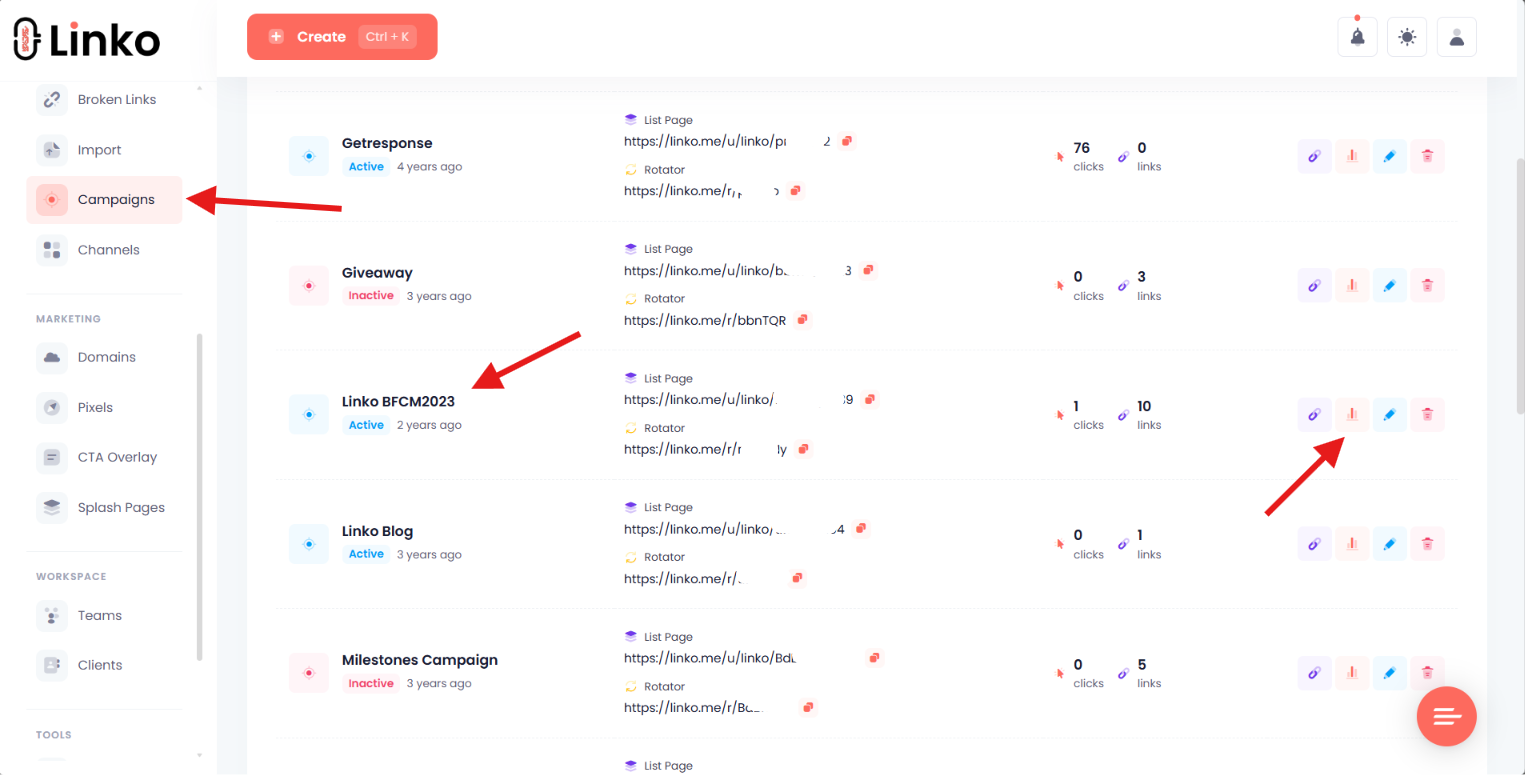
- Go to your Linko dashboard.
- Then navigate to the campaigns page.
- In front of each campaign, you will see a stats icon; click on it.
- You will be redirected to the aggregated stats dashboard for all links inside the campaign.
- You can view clicks, hourly performance, geography, devices, language, and referrers.
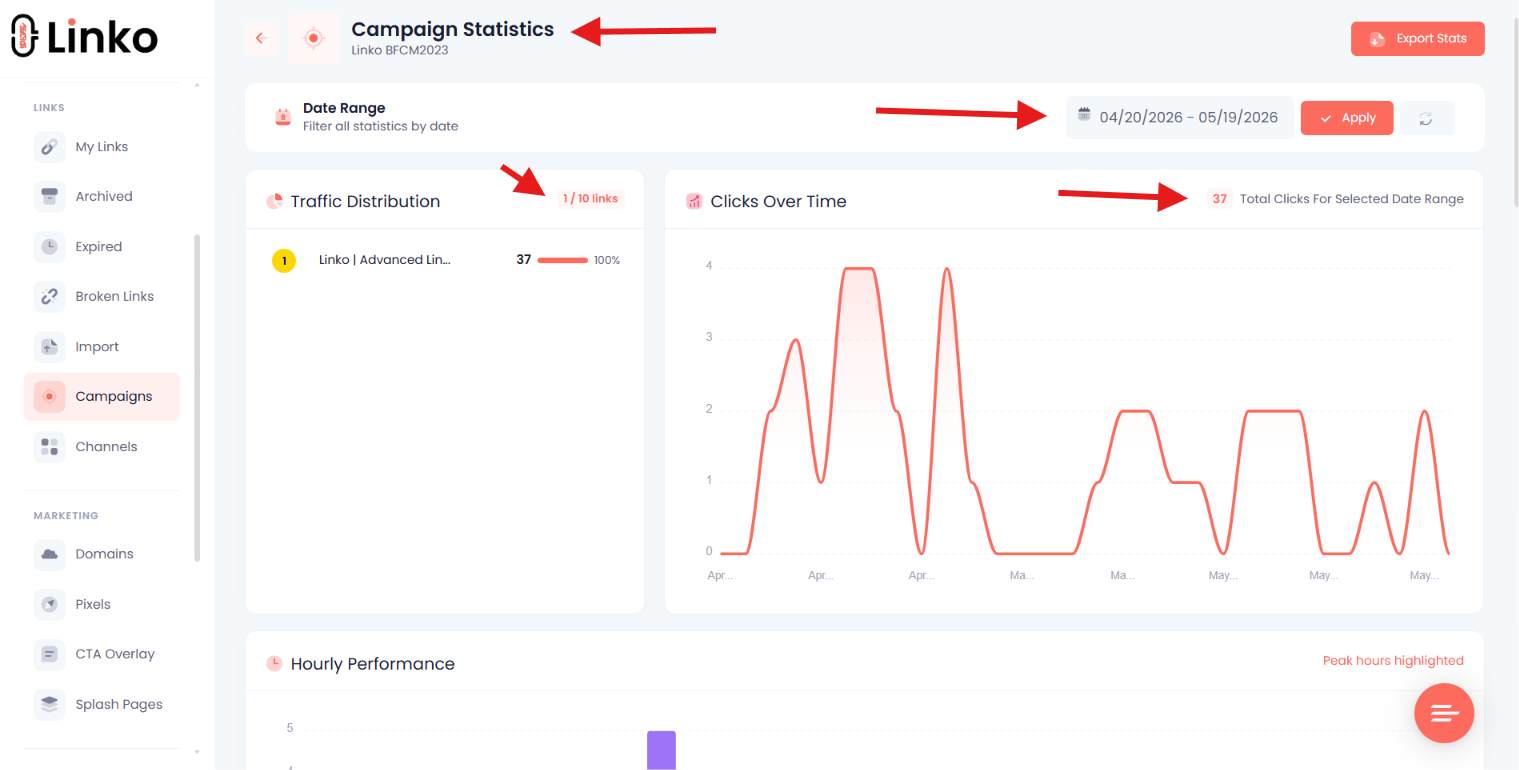
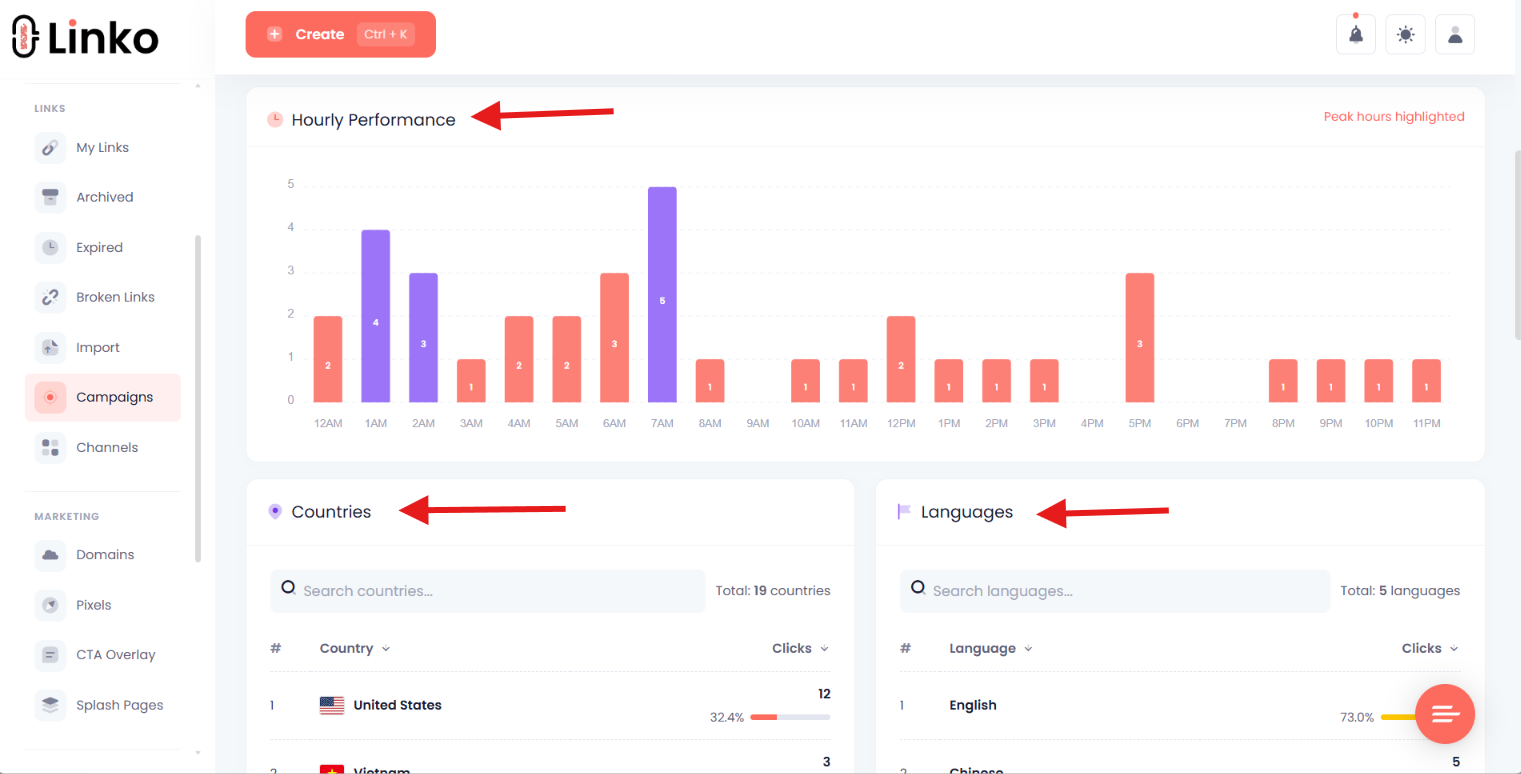
This data tells you which creators convert best on which platforms. For more on link tracking, see how to track links for free.
Common Issues and Troubleshooting
When something breaks, these are the typical causes.
“Error 1: API key invalid”
Your API key is wrong or expired, or your plan doesn’t include API access.
Solutions:
- Verify the key from your Linko developers page
- Check that your plan includes API access (Pro, Business, or Agency)
- Ensure the key isn’t surrounded by extra spaces or quotes
“Rate limit exceeded”
You’re sending requests faster than your plan allows.
Solutions:
- Increase
DELAY_BETWEEN_REQUESTS_MS - Upgrade to a higher plan
- Run smaller batches
“Domain not found”
The branded domain isn’t configured correctly in your Linko account.
Solutions:
- Verify the domain is added in your Linko dashboard
- Check DNS propagation if you just added it
“Campaign not found”
The campaign ID in your Funnel record doesn’t match an existing campaign.
Solutions:
- List your campaigns via
GET https://linko.me/api/campaigns - Verify the ID is a number, not a string
- Create the campaign first if it doesn’t exist
Links generate but show wrong destination
The destination Link field contains a malformed URL.
Solutions:
- Ensure URLs include
https:// - Test the URL manually in a browser
- Check for trailing whitespace in the field
How Do You Scale This Beyond Link Creation?
The same pattern extends to other Linko API endpoints.
Bulk QR code generation
Replace the /api/url/add endpoint with /api/qr/add to generate QR codes instead.
Useful for creators promoting OnlyFans through print materials, business cards, or in-person events.
Automated Instagram bypass setup
Every link created through this script can include deep linking automatically.
Add the deeplink parameter to the API call:
body: JSON.stringify({
    url: longUrl,
    domain: LINKO_DOMAIN,
    campaign: campaignId,
    deeplink: {
        auto: true
    }
})
The auto: true flag tells Linko to detect the destination platform (OnlyFans, Fansly, etc.) and generate the correct deep link URIs automatically.
No manual app store URL configuration needed.
This automatically opens links in Safari (iPhone) or Chrome (Android), bypassing Instagram’s broken in-app browser.
For agencies shortening direct OnlyFans URLs, deep linking is essential to maintain conversions.
You can also read about how to open OnlyFans links in Safari from Instagram for a step-by-step setup walkthrough.
Frequently Asked Questions
Do I need coding experience to use this script?
No. The complete script is provided. You only need to update the configuration variables at the top.
If you’re comfortable copying code into Airtable’s Scripting extension, you have all the skills needed.
How fast can I generate links?
It depends on your Linko plan.
- Pro plan: ~15 links/minute
- Business plan: ~60 links/minute
- Agency plan: ~500 links/minute
For 50 creators with 100 links each (5,000 total), Agency plan completes the batch in about 10 minutes.
Can I use this without Airtable?
Yes. The same logic works in any environment that supports HTTP requests.
Common alternatives include:
- Google Sheets with Apps Script
- Make (formerly Integromat)
- Zapier
- Custom Node.js or Python scripts
The Linko API endpoints are the same regardless of which platform calls them.
What happens if my API key is exposed?
Regenerate it immediately from your Linko developers page.
The old key stops working within seconds. Update your scripts with the new key to resume operations.
Can I use this for non-OnlyFans automation?
Yes. The same workflow applies to any high-volume link generation use case:
- Affiliate marketing
- E-commerce campaign tracking
- Multi-client agency operations
- Influencer link management
The Linko API is platform-agnostic.
How do I monitor link performance after generation?
Use the Linko dashboard’s campaign view.
Each campaign shows total clicks, unique visitors, top countries, devices, and referrers across all links in that campaign.
You can also export this data for custom dashboards.
Start Automating Your Link Operations
Manual link management caps your agency at the size of your operations team.
API automation removes that ceiling. The same workflow that handles 5 creators handles 500 with no additional human effort.
Linko’s API + Airtable combination is the foundation most enterprise OnlyFans agencies run on.
Ready to build it for your own agency?
Create your free Linko account to test the API.
For production use, upgrade to Business or Agency plan to unlock the rate limits this workflow needs.
Questions about the API? Check the full API documentation linked from your Linko dashboard for every available endpoint.
Comments