
A QR code for your restaurant menu lets guests scan a table code and see your menu on their phone in one tap.
No app, no paper reprints, no waiting.
The key is to make it a dynamic QR code that points to your digital menu.
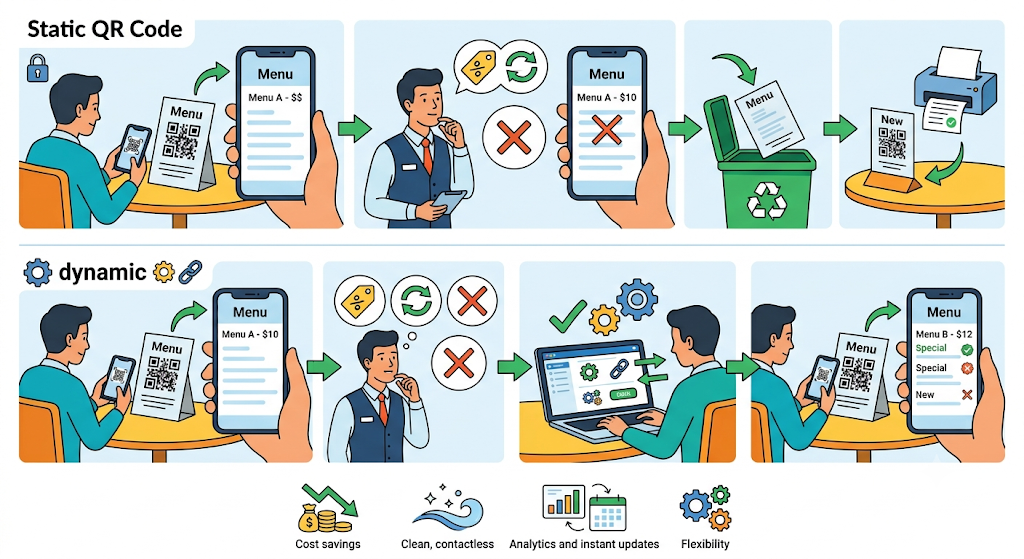
Dynamic means you can change prices or swap dishes anytime without reprinting a single table tent.
This guide walks you through the whole process, what to link to, how to design it so it actually scans, and where to place it.
You can make your first one free.
Let’s do it.
Key Takeaways
- Create a menu QR code by linking it to your digital menu, then make it dynamic so you can update the menu without reprinting.
- Link to a mobile-friendly menu page for the best experience, or upload your menu PDF straight to Linko with a dynamic file QR code for the fastest setup.
- Linko’s free plan includes 2 dynamic QR codes with scan analytics, enough for most single-location restaurants.
- Keep the printed code at least 1.5 to 2 inches, high-contrast, and tested under your real dining lighting.
- Table-mounted codes get the most scans, so table tents and stickers are your best placement.
Why Use a QR Code Menu?
A QR code menu turns a printed square into a live digital menu.
For restaurants, that solves real problems:
- Update prices and dishes anytime without reprinting menus
- Show sold-out items or seasonal specials instantly
- Cut printing costs and give a clean, contactless experience
- See how many guests scan, and when, with analytics
The one rule every guide agrees on: use a dynamic QR code.
A static code locks the destination forever, so any menu change means new prints.
A dynamic code uses an editable link, so the printed code stays the same while the menu behind it changes.
Our guide on dynamic vs static QR codes explains the difference in full.
What Should Your Menu QR Code Link To?
Before you generate anything, decide what the code opens.
You have two solid options.
Option 1: A mobile-friendly menu page (best experience)
Link the code to an online menu page built for phones.
Guests can read it without pinching or zooming, and it loads fast.
This is the better long-term choice, especially if you update the menu often.
Option 2: Your menu as a PDF, uploaded straight to Linko (fastest setup)
If you already have a designed print menu, you do not need to host it on Google Drive, Dropbox, or your website first.
With Linko’s dynamic file QR code, you upload the menu PDF directly and Linko hosts it on a branded page.
Create a free account, upload the file, and your code is ready.
Because it is dynamic, you can swap in an updated PDF anytime and the printed code keeps working.
The one trade-off is that PDFs are built for paper, so guests may have to zoom in on a small screen.
It works well, but a mobile page reads a little easier.
Here is how the two options compare:
| Factor | Mobile-friendly page | PDF menu |
|---|---|---|
| Reading on a phone | Easy, no zoom needed | Often needs pinch and zoom |
| Easy to update | ✓ | Limited |
| Setup speed | Slower to build | Fastest, upload the PDF straight to Linko |
| Best for | Frequent menu changes | Digitizing an existing print menu fast |
Either way, the next steps are the same.
How to Create a QR Code for Your Restaurant Menu
Here is the full process using Linko.
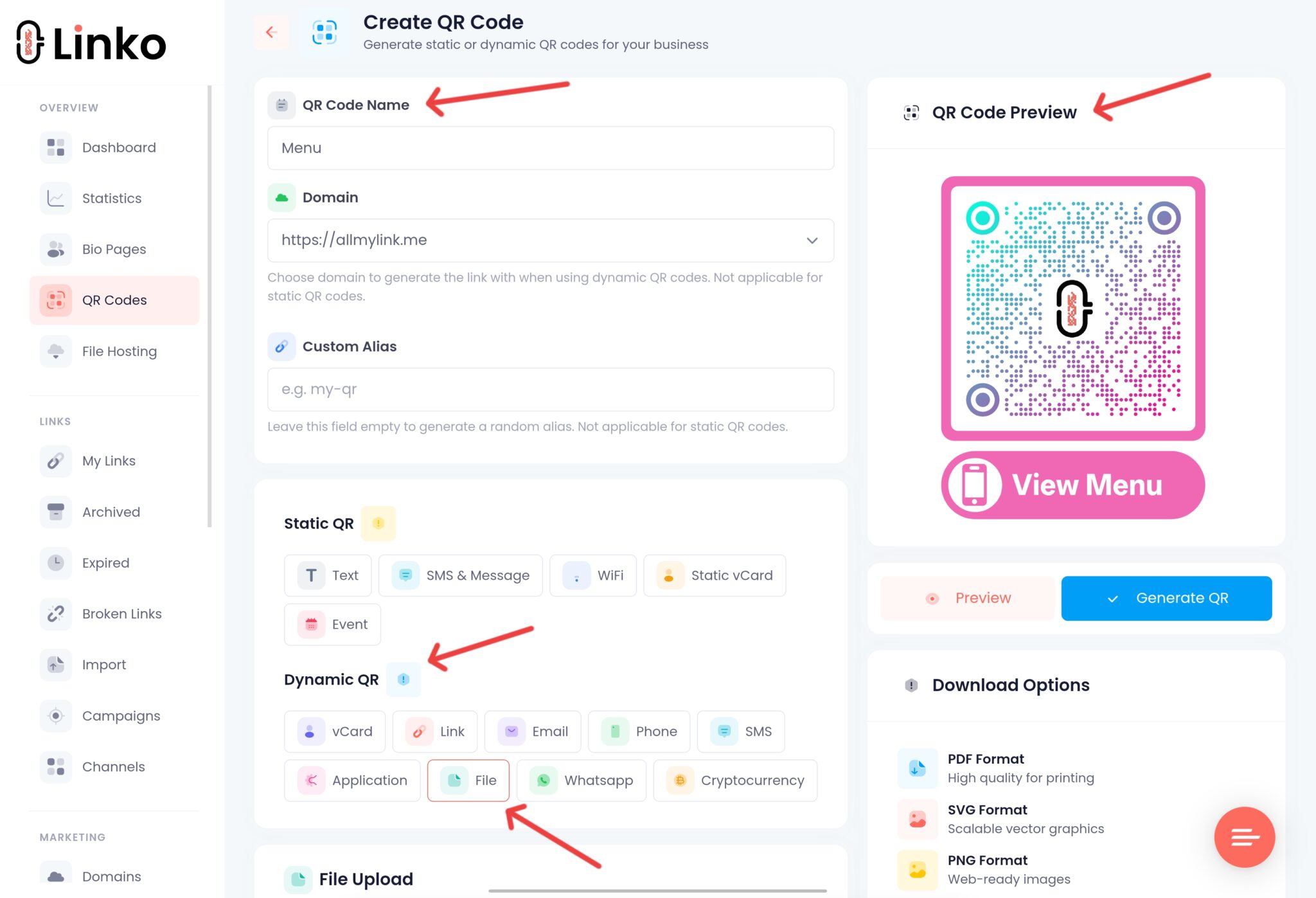
- Get your menu online. Either publish a mobile-friendly menu page and copy its link, or save your menu as a PDF.
- Open Linko’s QR code generator.
- Choose the type. Pick a URL QR code and paste your menu page link, or use a dynamic file QR code to upload your menu PDF directly, with no external hosting needed.
- Set it to dynamic. This lets you edit the destination later and track scans.
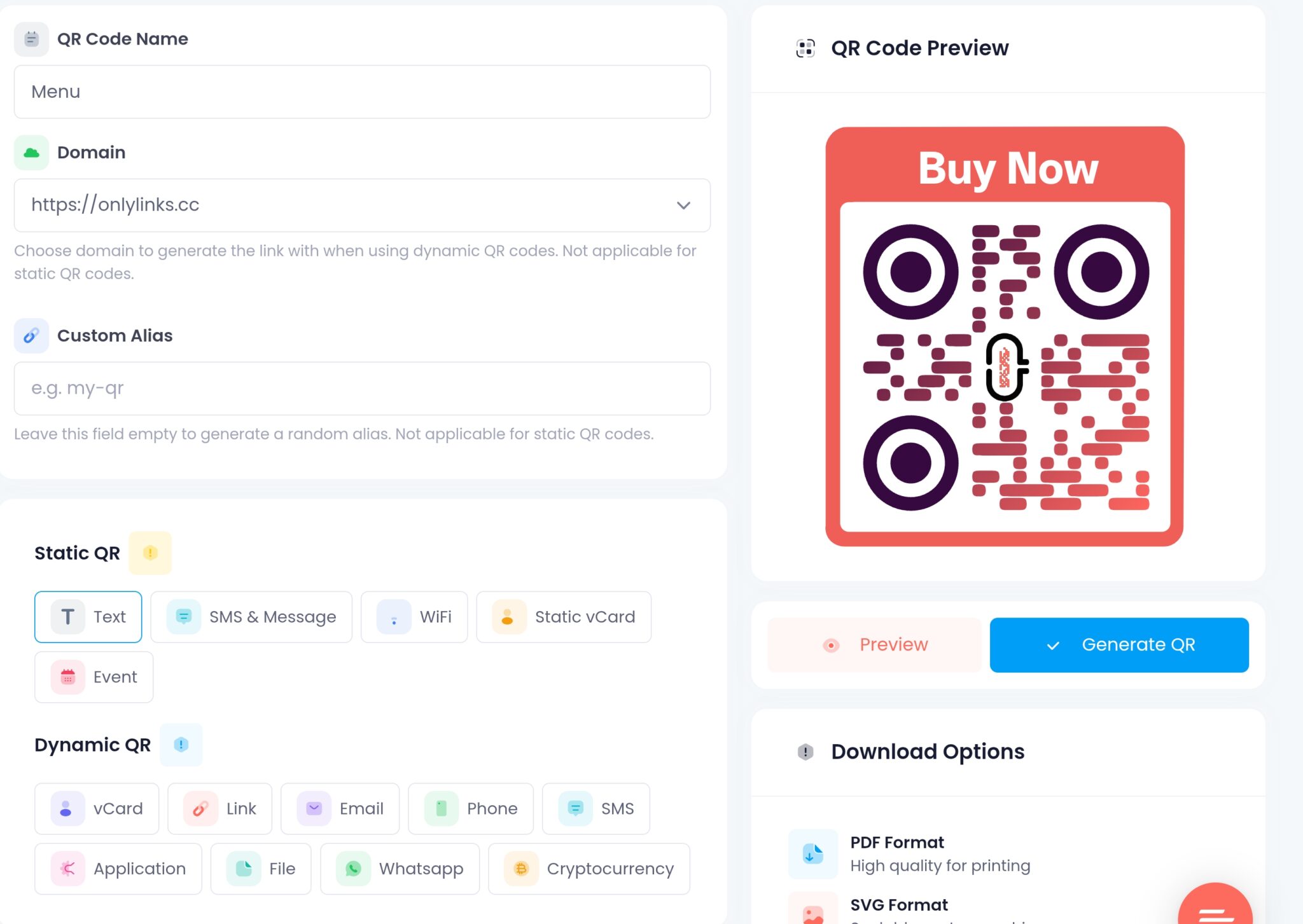
- Customize it. Add your brand colors, drop your logo in the center, and add a frame with a prompt like “Scan for Menu”.
- Download it. Use PNG for screens, or SVG and PDF for sharp, large prints.
- Test it. Scan the final code with a couple of different phones before you print in bulk.
That is it. Your menu is now a scannable code you fully control.
How Many Menu QR Codes Can You Make Free?
Linko’s free plan includes 2 dynamic QR codes with scan analytics.
For a single restaurant, that is usually enough: one code for the menu and one for something else, like a Google review code.
The free plan still gives you full design control, so you can brand the code without paying.
If you run several locations or want a unique code per table, higher plans raise the limit, and you can generate many at once with the bulk QR code generator.
See the full Linko pricing breakdown.
Design and Printing Tips That Keep Your Code Scannable
A menu code only works if it scans on the first try, in a dim restaurant, from across the table.
Follow these basics:
- Size it right. Keep the printed code at least 1.5 to 2 inches square for tableside scanning. Bigger for posters or windows.
- Keep high contrast. Dark code on a light background scans best. Avoid low-contrast color pairs.
- Protect the quiet zone. Leave clear space around the code, with no text or graphics crowding it.
- Avoid glare. Matte surfaces beat glossy laminate, which can reflect light and block scans.
- Keep the logo small. A center logo is fine, but keep it within a safe size so it does not cover too many modules.
- Test under real lighting. Scan it in your actual dining room, not just on your bright monitor.
Where Should You Place Your Menu QR Code?
Placement decides how many guests actually scan.
Table-mounted codes get the most scans by far, so start there.
- Table tents and table stickers, at eye level when seated
- Menu cards or small stands on each table
- The host stand, counter, and waiting area
- Window signs for passersby and takeaway customers
- Receipts and takeaway packaging
Pair the code with a short prompt such as “Scan for Menu” so guests know exactly what to do.
Track Scans and Grow Reviews
Because your code is dynamic, Linko records every scan.
You can see how many guests scan, when your busy times are, and which placement performs best, then adjust.
Many restaurants pair the menu code with a review code on the same table.
See our guide on making a QR code for Google reviews to turn happy diners into five-star ratings.
Frequently Asked Questions
How do I make a QR code for my restaurant menu?
Publish your menu as a mobile-friendly page or a PDF, paste or upload it into a QR generator like Linko, set the code to dynamic, add your branding, then download and print it. Test it on a phone before printing in bulk.
Is a QR code menu free?
Yes. Linko’s free plan includes 2 dynamic QR codes with scan analytics, which is enough for most single-location restaurants. You only pay if you need more codes or advanced features.
Should a menu QR code be static or dynamic?
Dynamic. A dynamic code lets you change prices, add specials, or remove sold-out items without reprinting the code. A static code would force a new print every time your menu changes.
Should I link to a PDF or a web page?
A mobile-friendly web page is the better experience because it is easy to read and update. A PDF is fine for a fast start, and with Linko you upload the PDF directly using a dynamic file QR code, so you do not need separate hosting. Guests may just have to zoom in a little on their phones.
What size should a restaurant QR code be?
For tableside scanning, keep it at least 1.5 to 2 inches square. Make it larger for posters, windows, or anything scanned from a distance, and always keep clear space around it.
Can I use one QR code for multiple menus or locations?
You can point one dynamic code to a menu page that lists everything, or create a separate code per location or table. For many codes at once, use a bulk QR generator.
Make Your Menu QR Code Today
A dynamic QR code menu saves you reprints, gives guests a clean experience, and shows you real scan data.
Get your menu online, generate a branded dynamic code, print it at the right size, and place it on the table.
Create your free Linko account and make your restaurant menu QR code in minutes.
No credit card required, and you can update the menu anytime without reprinting.
Comments